Installing SVD with Microsoft Edge
Edge stops the download twice before it lets you install. Here's each screen and exactly what to click.
Downloading with Chrome instead? Use the Chrome guide →
Edge blocks the download
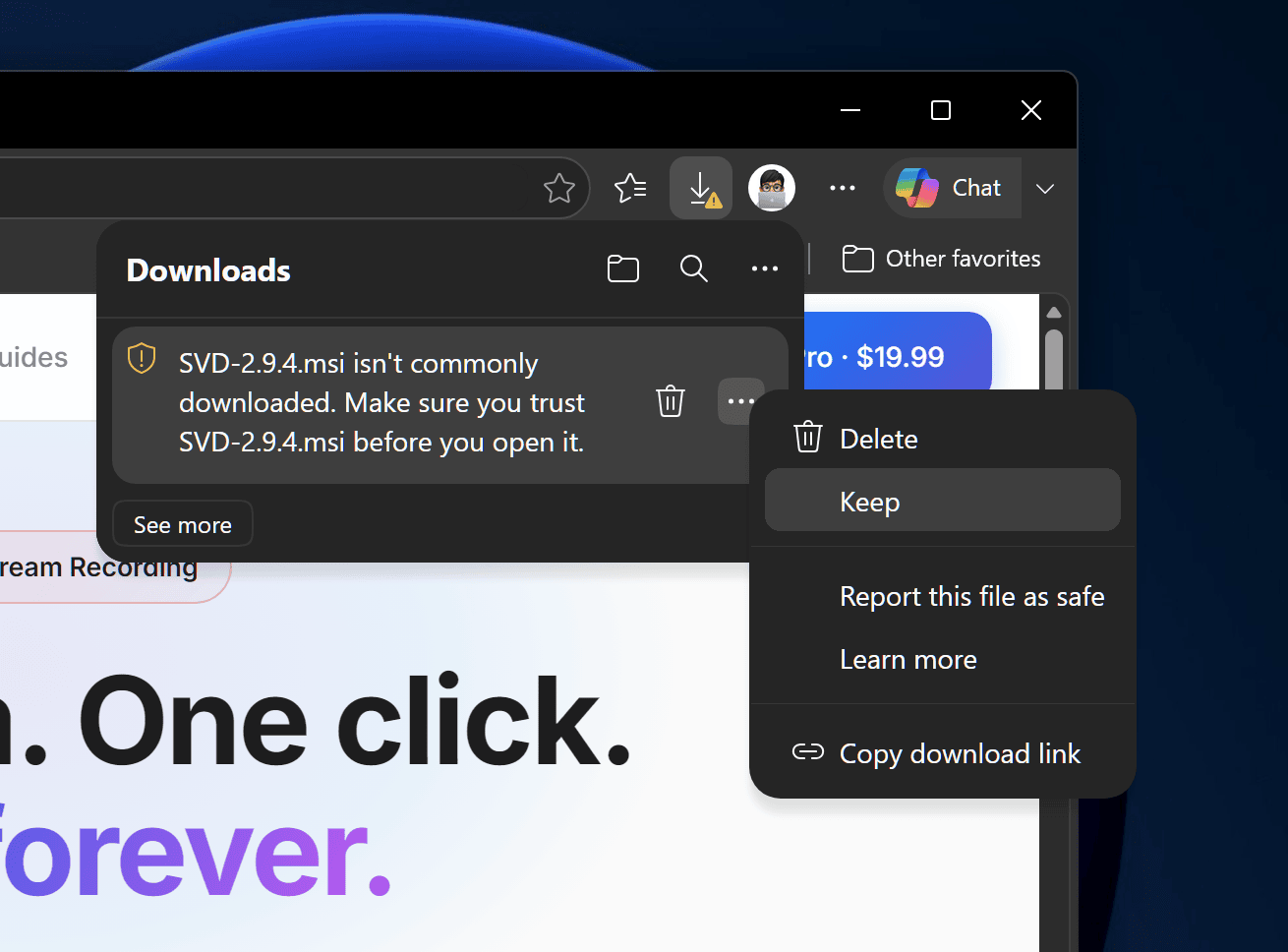
When the download finishes, Edge flags the file in the Downloads flyout:
Click the ⋯ (three dots) next to the file, then choose Keep.
SmartScreen asks you to confirm
Edge asks once more. This is the screen people get stuck on. The obvious button says Delete, and the one you actually want is hidden behind the small arrow beside it.
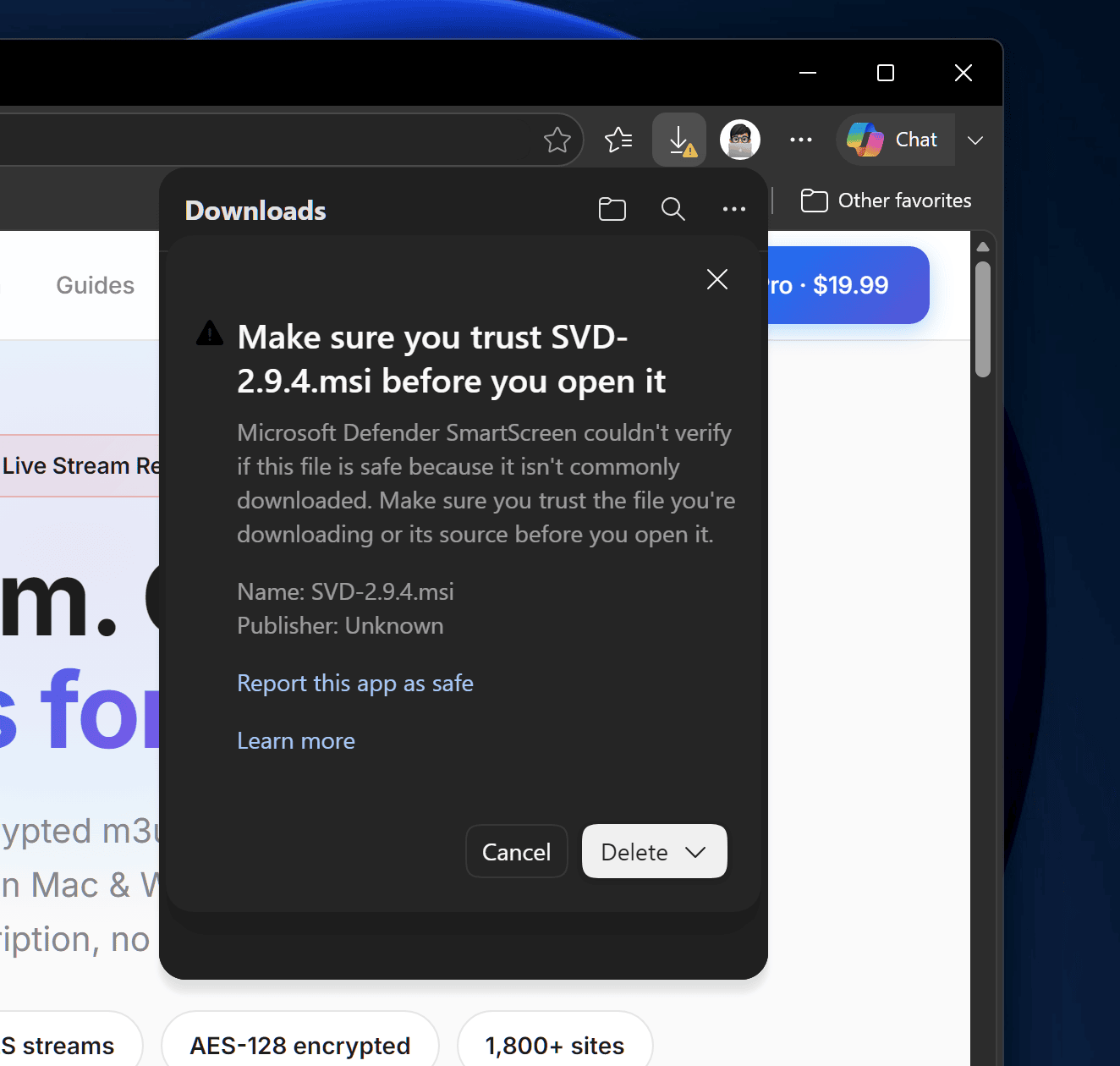
Click the arrow next to Delete, then choose Keep anyway.
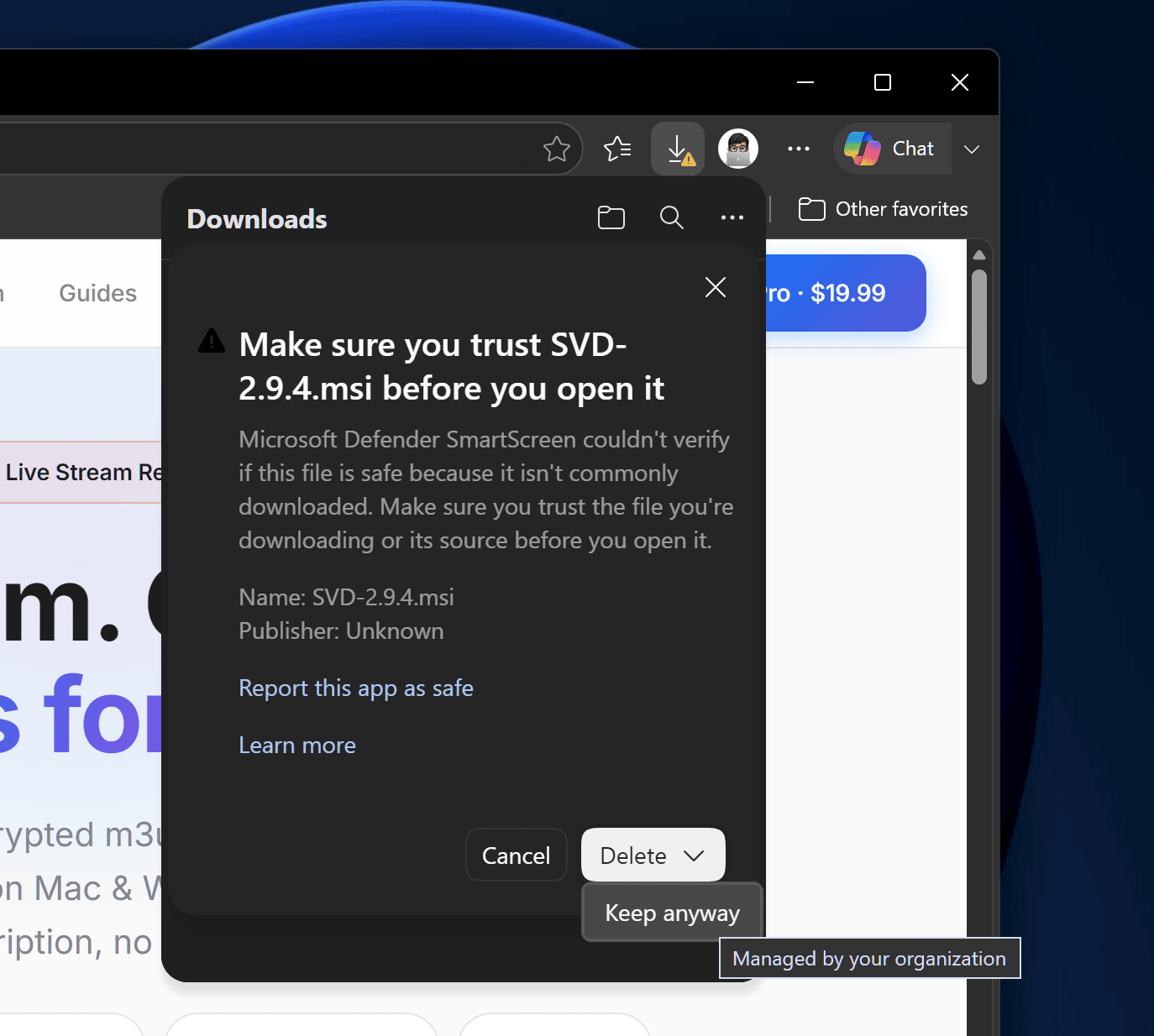
This screenshot is from an older version that showed "Publisher: Unknown". From 3.0.10 the installer is code-signed as byjwstudio. If Keep anyway is greyed out and shows "Managed by your organization", a device policy is blocking it — see the troubleshooting box below.
Some machines also show a separate blue "Windows protected your PC" screen when you run the installer. If it appears, click More info → Run anyway.
Windows asks for permission
Double-click the MSI. Windows User Account Control asks whether to allow it. From 3.0.10 it shows the verified publisher byjwstudio. Older versions showed Publisher: Unknown, as in the screenshot below.
Click Yes.
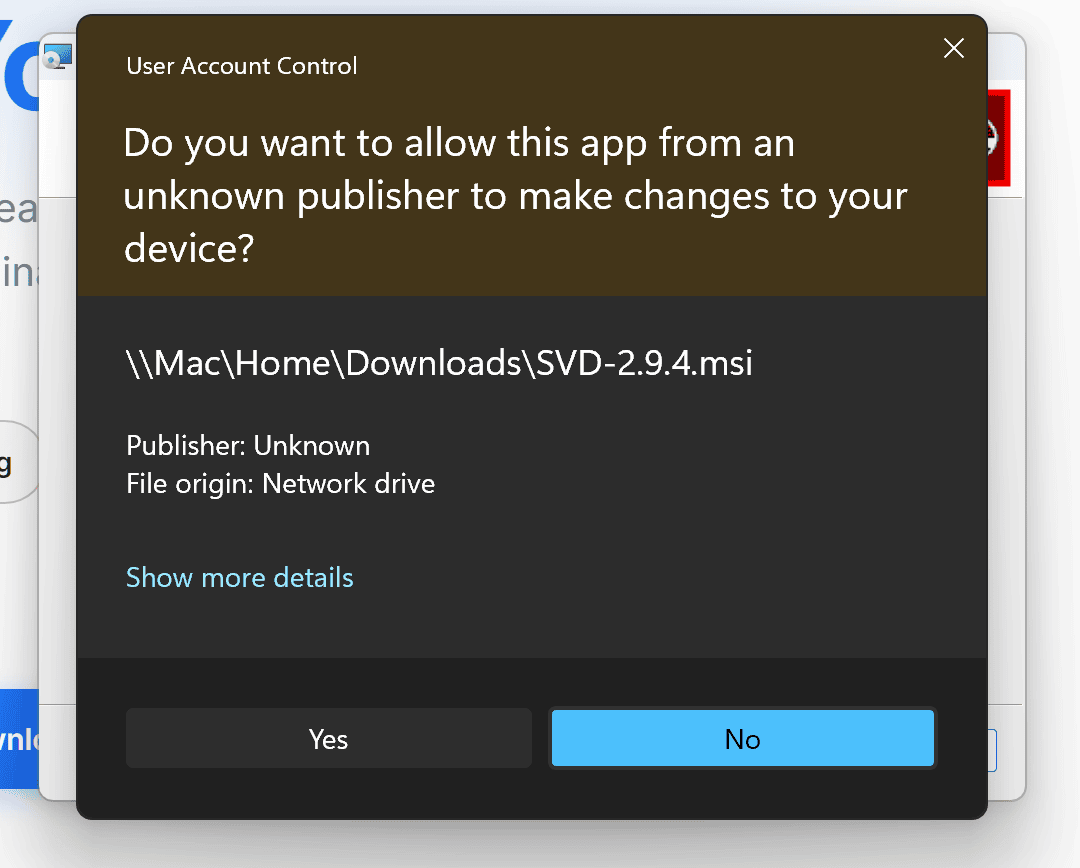
The file path shown will match wherever you saved the download.
First launch
Open SVD from the Start Menu. The first run takes a few seconds while Windows checks the bundled binaries. After that, paste a video URL and SVD downloads it. The free trial runs 7 days with a daily limit.
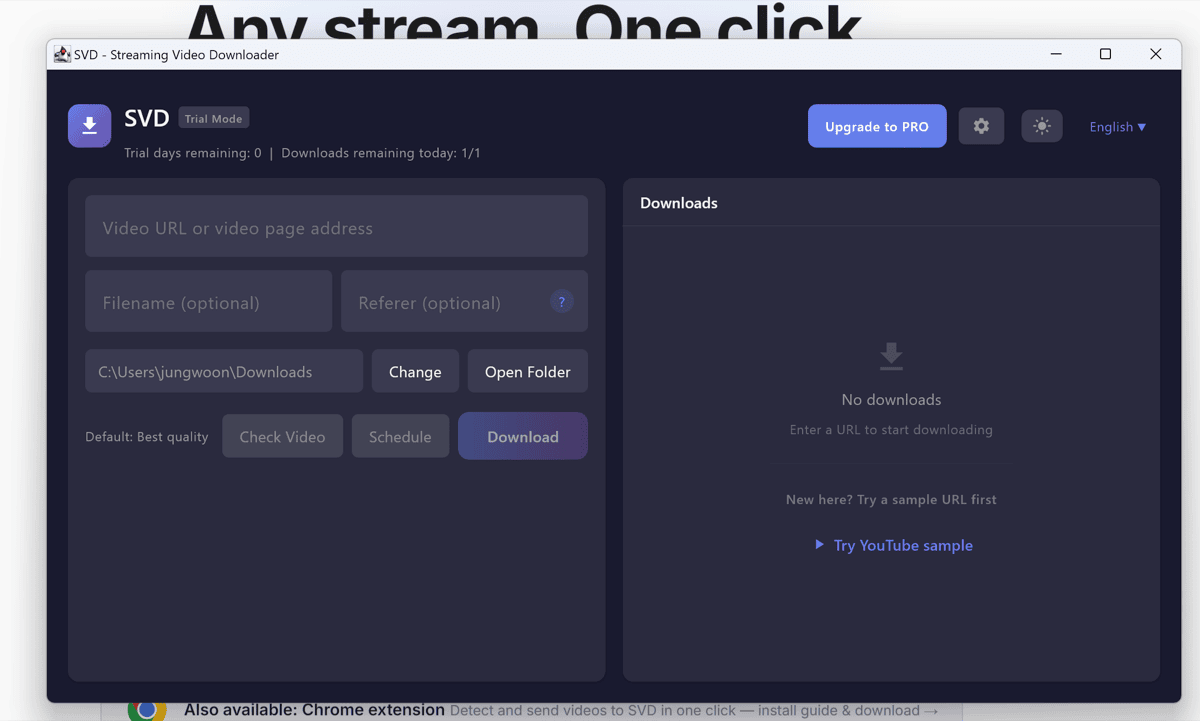
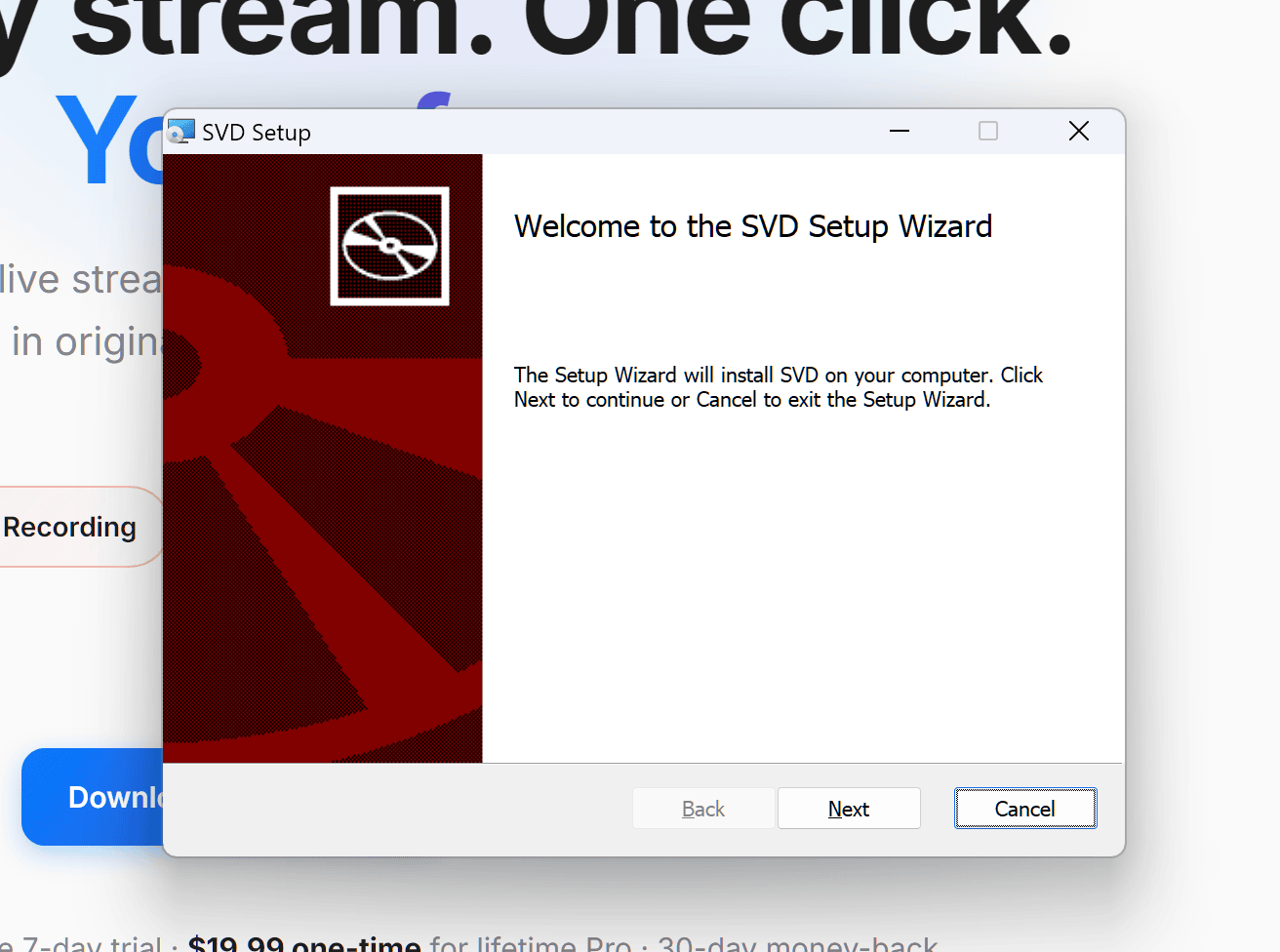
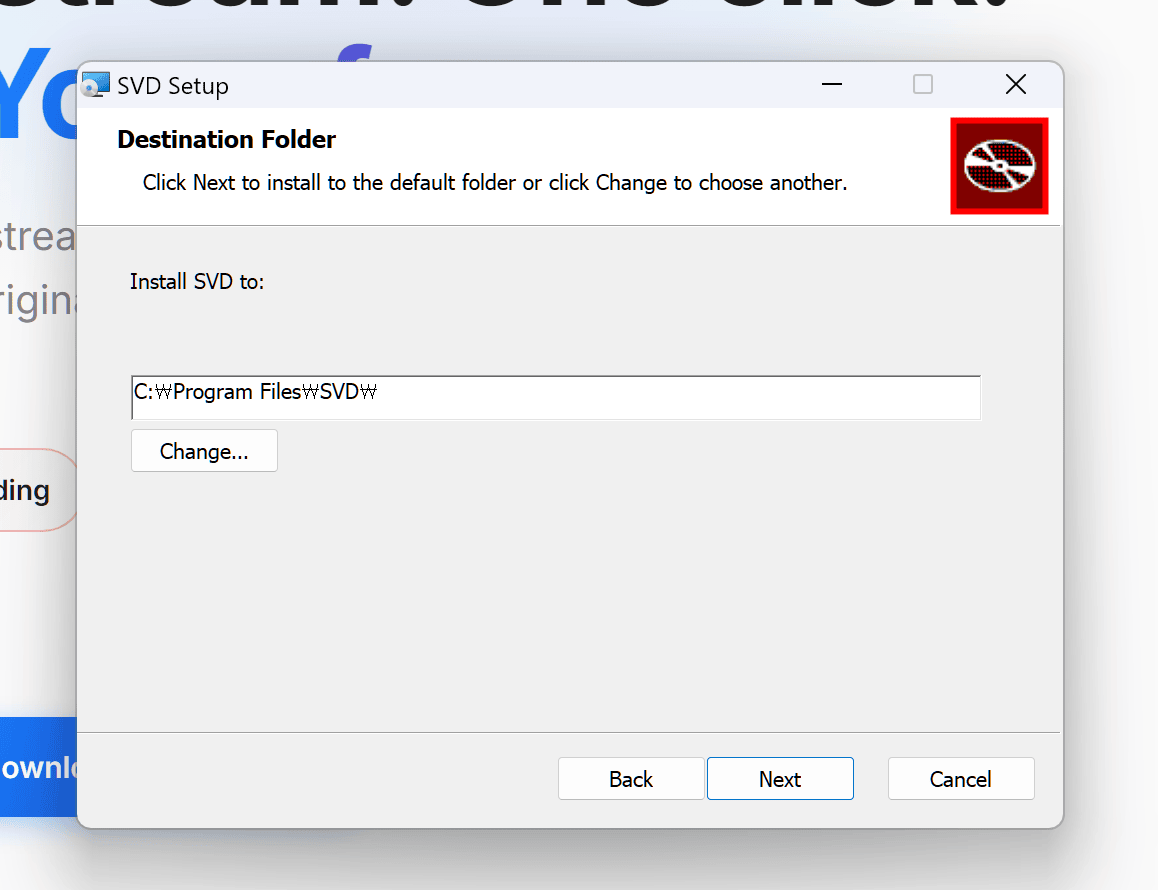
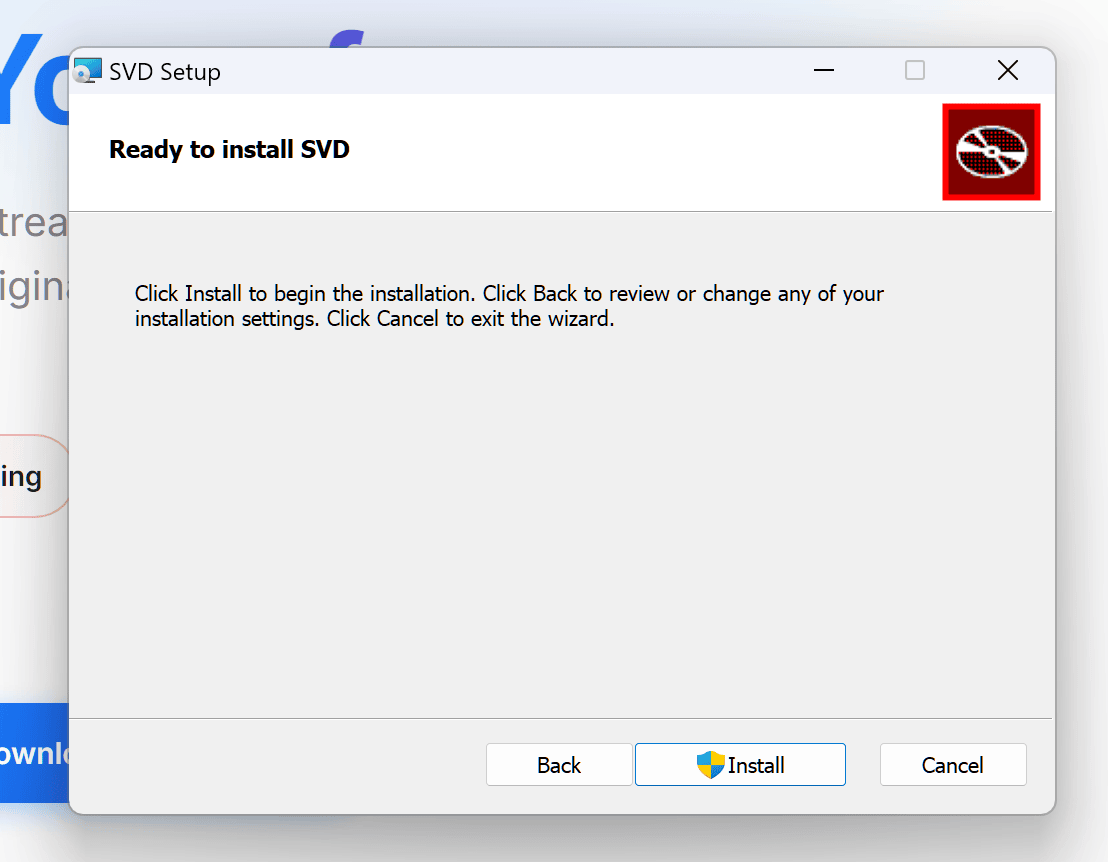
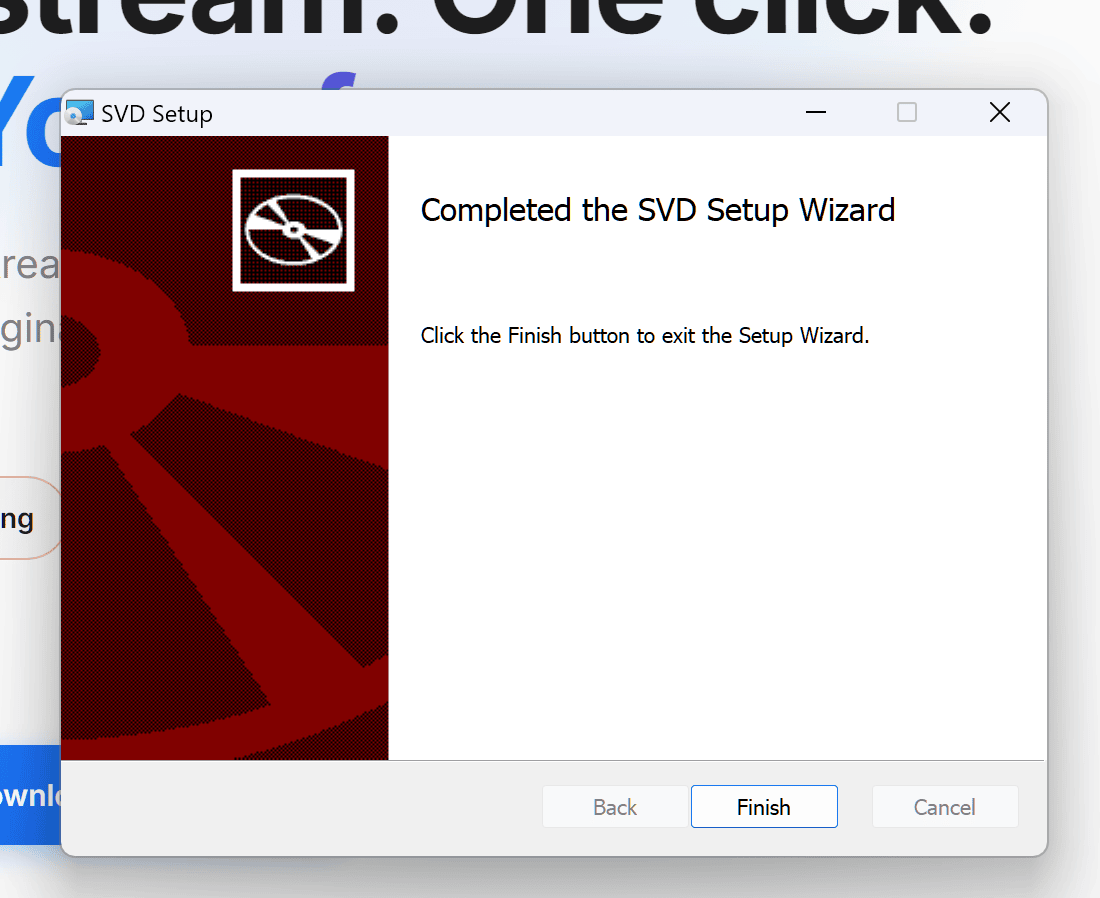
What the installer looks like
From here it's an ordinary Windows installer. If your screens match these, it's going correctly.
⚠️ Got a 0-byte file, or one that won't open?
Then the download never finished. A complete download shows the full size in your browser's download list — this is Chrome, and Edge shows the same thing in its own download tray:
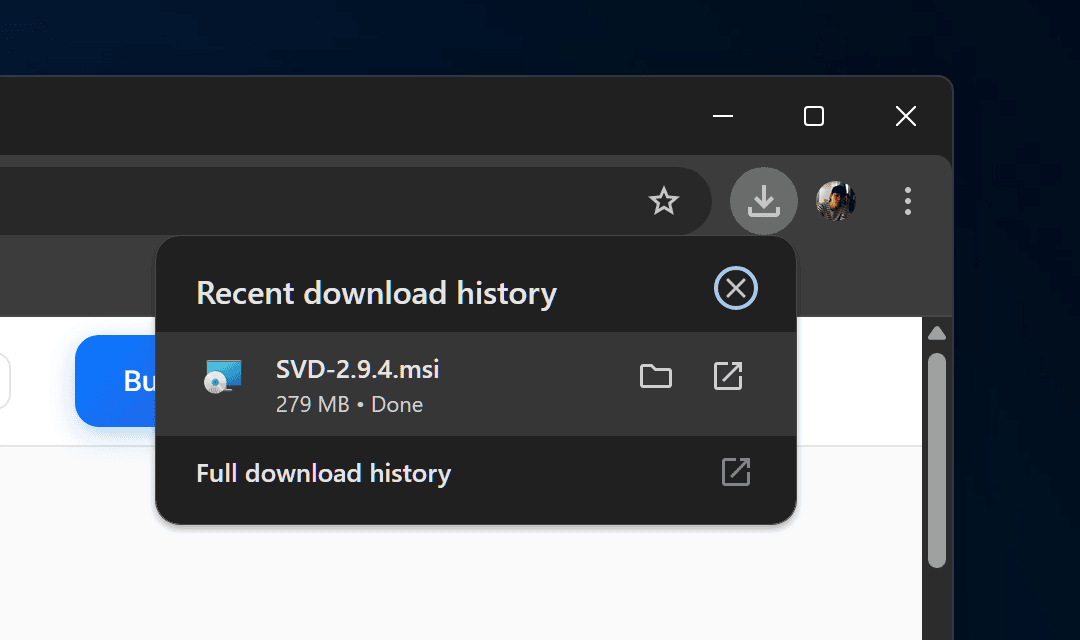
SVD-3.0.16.msi is about 280 MB. If yours is 0 bytes, much smaller, or still ends in .crdownload, it was blocked or cut off — usually by SmartScreen or antivirus, not by a broken link.
Delete the partial file and download again. If it keeps failing, pause your antivirus for the download or try another browser, then confirm the result with the hash below.
If "Keep anyway" is greyed out and hovering it shows "Managed by your organization", a Windows or Edge policy on this device is blocking the download outright. That's a device setting, not something we can fix from our end. Download with PowerShell instead:
Invoke-WebRequest -Uri "https://storage.googleapis.com/getsvd-downloads/releases/v3.0.16/SVD-3.0.16.msi" -OutFile "$HOME\Downloads\SVD-3.0.16.msi"
This skips the browser download layer entirely. Check the hash afterwards, then run the MSI as usual.
🔐 Verify the installer (optional)
To confirm the file you downloaded is the exact one we built, compare the SHA-256 hash:
certutil -hashfile SVD-3.0.16.msi SHA256
Expected hash for SVD-3.0.16.msi:
bf5dcbcb316e23f3985d7f97c34349f49d00b9984a4b1b6a25428e14737c38e1
If it matches, the file arrived complete and untampered. A mismatch — or a 0-byte file — means the download was blocked or cut short.